Sending Messages
The chat bar, mentions, typing indicators, and how to tell whether your message was opened.
Open a chat, type in the bar at the bottom and tap the send button. A message can be up to 2,000 characters long, or 5,000 with Premium.
The chat bar
- Gift: drop coins or Premium into the chat for whoever grabs it first.
- Ghost mode (DMs): messages that disappear once they are seen. See Ghost Mode & One-Time View.
- Voice memo: tap to record. See Voice Memos.
- GIF, Emoji and Camera. Hold the camera to open your Memories.
- Attachment (paperclip): photos, videos, stickers, the whiteboard and more.
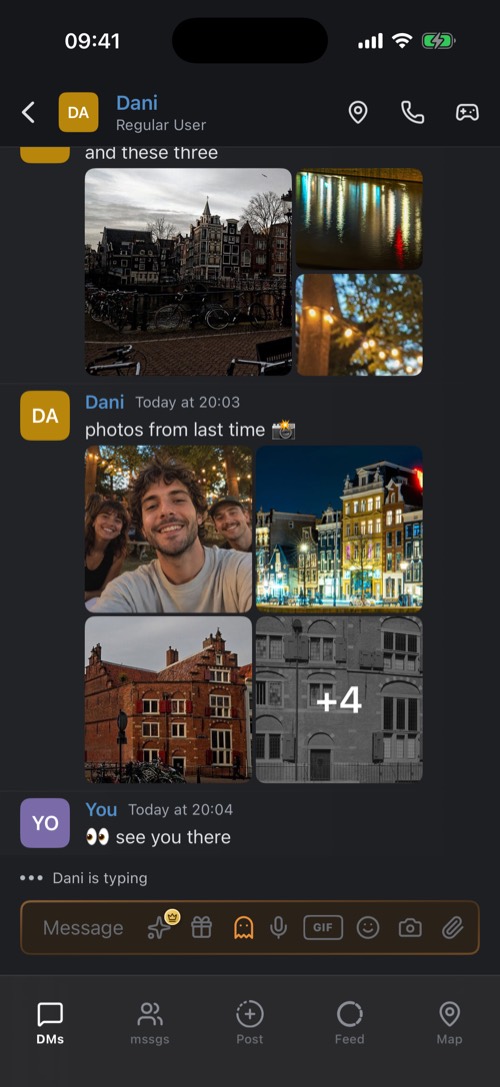
Premium members also get Reactions: emoji and stickers thrown across the chat. You can reorder or hide the buttons in DMs, see Customizing a Chat.
Shortcuts while typing
| Type | To get |
|---|---|
@ | A list of people to mention. They get a notification. |
# | A link to a channel, even one in another community. |
: | Emoji by name, including a community's own emoji. |
/ at the start | The commands a community or bot offers. See Slash Commands. |
Did they see it?
Your chat list tells you where each conversation stands, under the friend's name:
- Sent a chat, Sent a photo, Sent a video: your latest message is waiting for them.
- Opened: they opened what you sent, or you are both caught up.
- New chat, New photo: something new from them is waiting for you.
- Received: you opened what they sent.
For a single message, hold it and choose Read By. It lists everyone who has read up to that message, in DMs and in community channels. While someone is typing you see it above the chat bar, down to "is choosing an attachment" or "is recording a voice memo".
Was this article helpful?
Didn’t find what you were looking for? We’re happy to help.
Ask your question