Notifications
Push notifications, sounds and ringtones per chat, mentions, and how your phone and computer share alerts.
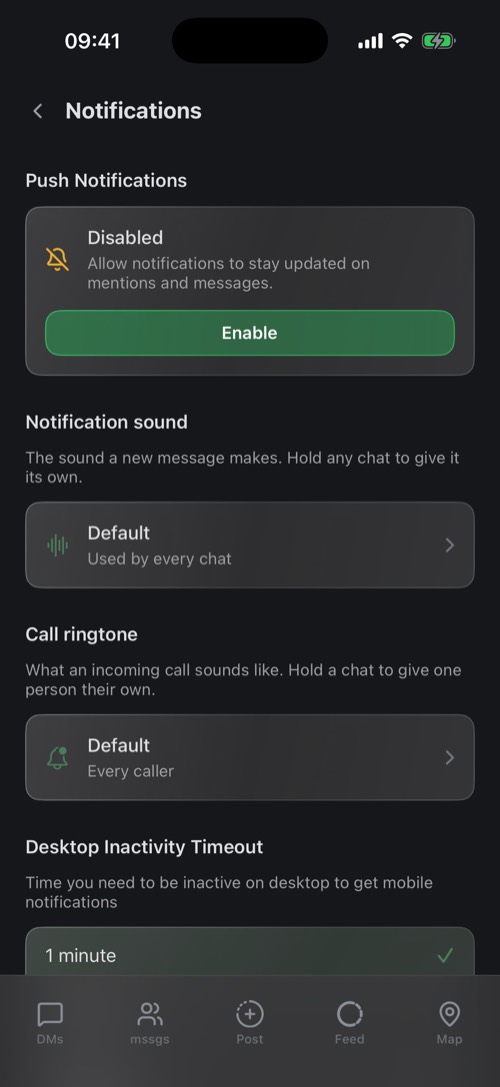
Turn them on
At the top of Settings → Notifications you see whether push notifications are allowed. If they are off, tap Enable, or Open Settings when iOS needs you to switch them on there.
Sounds
- Notification sound: the sound for new messages. Choose Ping, Ripple, Bloom, Pop, Marimba, Crystal and more, or Record your own.
- Call ringtone: what an incoming call sounds like.
- Ringtone groups: give one sound to a set of chats at once.
To give a single person their own sound, hold their chat and choose Notification sound or Ringtone.
Mentions
Notification on @mentions decides whether you get a notification when someone mentions you in a community.
Phone and computer together
Signed in on your computer too? Two settings keep you from being buzzed twice:
- Desktop Inactivity Timeout (1 minute to 1 hour): how long you have to be away from your computer before your phone takes over the notifications.
- Notification Delay (immediately to 5 minutes): how long your phone waits about a message you are already reading on your computer.
Tap Save Changes after changing these.
Quieter communities
- Hold a channel and choose Notifications: Off, When in server, or Everywhere. Or Mute channel.
- Hold a community's icon and choose Mute Server.
- Mutes last 15 minutes, 1 hour, 8 hours, 24 hours, or until you unmute.
Getting nothing at all? See Common Issues.
Was this article helpful?
Didn’t find what you were looking for? We’re happy to help.
Ask your question