Finding Your Way Around
The bottom bar, the buttons at the top of your chat list, and the shortcuts that save you taps.
The bottom bar
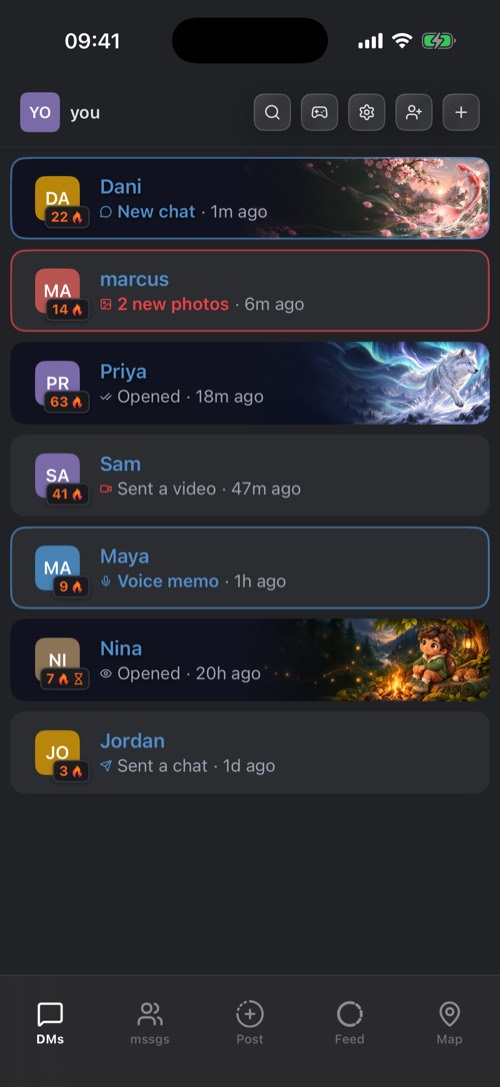
The bar at the bottom of the screen holds these tabs, among others:
- DMs: your direct messages with friends.
- Community: the community you are in. The tab takes that community's name.
- Post: the camera, to post to a story or a chat.
- Map: friends who share their location with you.
More tabs
Swipe the bar sideways for the rest: Activity, Credits, Clips, Reminders, News, Games, Memories, Tools, Private Groups and Settings. Archive joins them once you archive a chat.
Swipe up on the bar to see every tab at once. In edit mode you drag a tile to move it, and the first five land on the bar. The + Hotkey tile pins a community, a chat or a tool to the bar as its own button.
The buttons above your chats
| Button | What it does |
|---|---|
| Your avatar | Opens your story if you have one, otherwise your profile. |
| Magnifying glass | Search your chats and find new people. |
| Game controller | Start or join a game. |
| Gear | Settings. |
| QR code | Your personal QR code, for friends to scan. |
| + | Start a DM with someone by username. |
An envelope or a paper plane appears next to them when DM requests are waiting for you, or when you are waiting on someone else.
Shortcuts worth knowing
- Hold the DMs tab for your recent chats and a quick way to start a game.
- Hold the Community tab to switch communities and peek at unread channels.
- Swipe right in a community to open the list of communities and channels.
- Hold a chat in your list for its options: pin, archive, lock, notification sound and more.
Was this article helpful?
Didn’t find what you were looking for? We’re happy to help.
Ask your question