A Tour of Settings
How to open Settings, how to search it, and what lives on each screen.
Opening Settings
- The gear above your chat list.
- The gear at the bottom of a community's channel list, next to your name.
- The Settings tab: swipe the bottom bar sideways.
Not sure where something is? Type in Search settings. It also understands the words people actually use, like "ringtone", "passcode" or "dark mode".
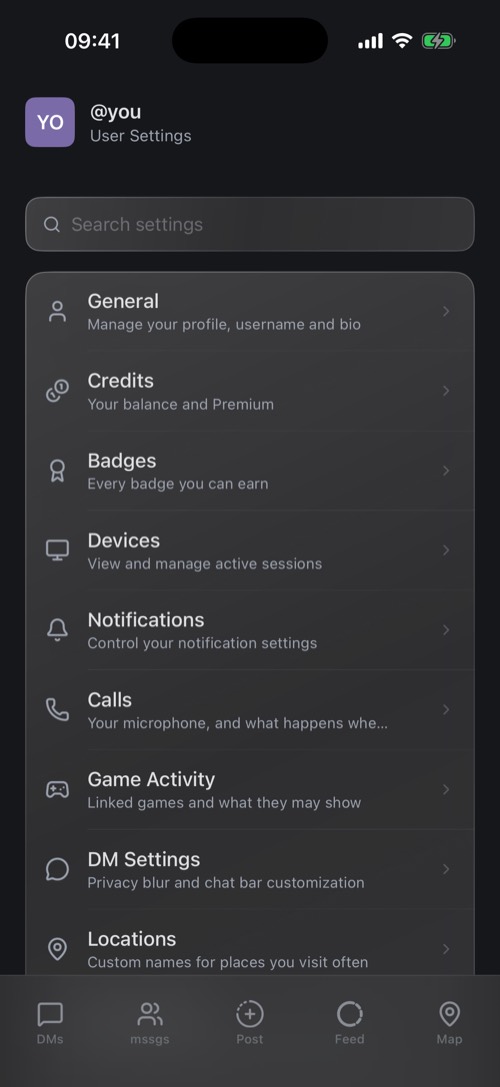
What is where
| Screen | What you set there |
|---|---|
| General | Profile photo, username, bio, language, confirm before sending, light or dark. See Your Profile. |
| Credits | Your balance, redeem a code, Premium and top-ups. See Credits & Premium. |
| Badges | Every badge you can earn, and what it takes. |
| Devices | Where you are signed in. See Password, Two-Factor & Devices. |
| Notifications | Push, sounds, ringtones, mentions and timing. See Notifications. |
| Calls | Join muted, ask before calling, keep calls floating. |
| Game Activity | Games outside mssgs that you linked to your account. |
| DM Settings | Pinned chats, friend's location, File Drop, saving posts to Memory, the chat bar. |
| Locations | Names for places you visit often. |
| Map & Filters | Map style, traffic, city filters and your filter submissions. |
| Security | Password and two-factor authentication. |
Further down
- Safety: Reports, Accessibility, Blocked users and Parent Center.
- Accounts: switch accounts, Login to Another Account, and Scan QR code to sign in on a computer.
- Your Memories, Import from Snapchat, See Walkthrough Again and App Feedback.
- Log Out and Delete Account at the very bottom.
Was this article helpful?
Didn’t find what you were looking for? We’re happy to help.
Ask your question