Password, Two-Factor & Devices
Set or change your password, add passkeys, an authenticator app or SMS as a second step, and sign out devices you do not recognise.
Password
You can use mssgs without a password: signing in by email code always works. To set or change one, go to Settings → Security → Change Password. mssgs first checks it is you, with an email code or your second step, then asks for the new password twice and shows how strong it is.
Two-factor authentication
Tap Add Two-Factor Method and choose:
- Passkey: Face ID, Touch ID or a security key. The easiest and the safest.
- Authenticator App (TOTP): scan the QR code with an authenticator app and enter a code.
- One-Time Password: a hardware key that types a code for you.
- Mobile Device (SMS): a code by text message.
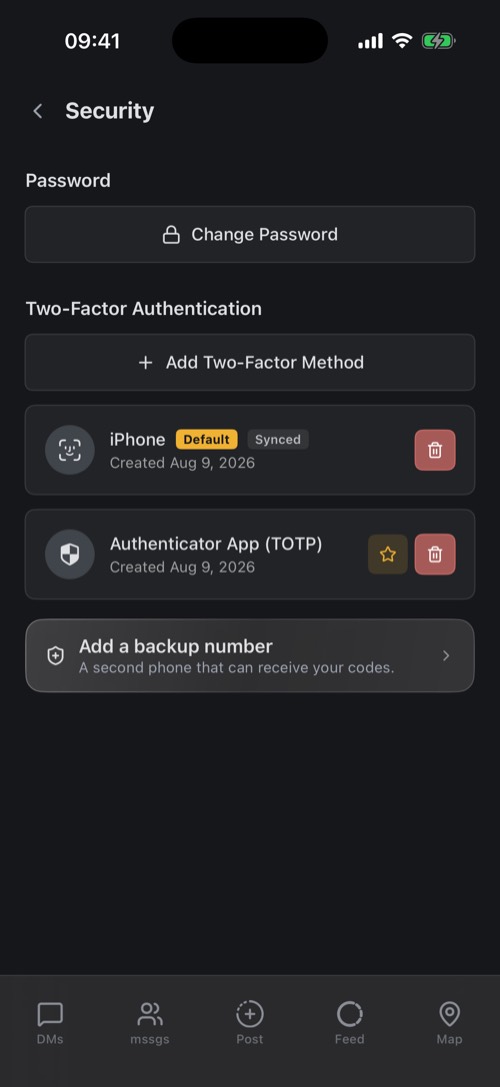
With more than one method, the star marks your default. Add a backup number gives you a second phone for codes. Removing a method asks for proof first, like your password or a code, so someone holding your unlocked phone cannot switch it off.
Devices
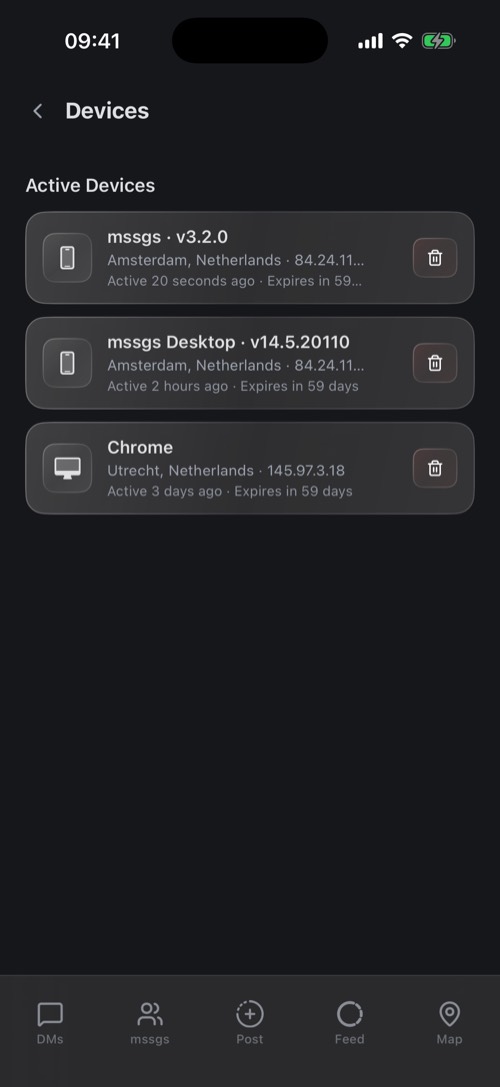
Settings → Devices lists everywhere you are signed in: the app and version or the browser, the city and IP address, and when it was last active.
Something you do not recognise? Tap the trash icon and Remove. That device is signed out immediately. Then change your password and check your two-factor methods.
Under Failed Two-Factor Auth you see devices that got your password right but failed the second step. If that was not you, your password is known to someone: change it.
Was this article helpful?
Didn’t find what you were looking for? We’re happy to help.
Ask your question