Signing In on the Web & Desktop
Approve a sign-in on mss.gs or the desktop app with your phone, without typing a password.
On mss.gs/login or in the desktop app you do not need a password. Your phone, already signed in, says yes.
With your phone
1
Open the sign-in page on your computer. It shows a QR code.
2
On your phone, go to Settings → Scan QR code and scan it.
3
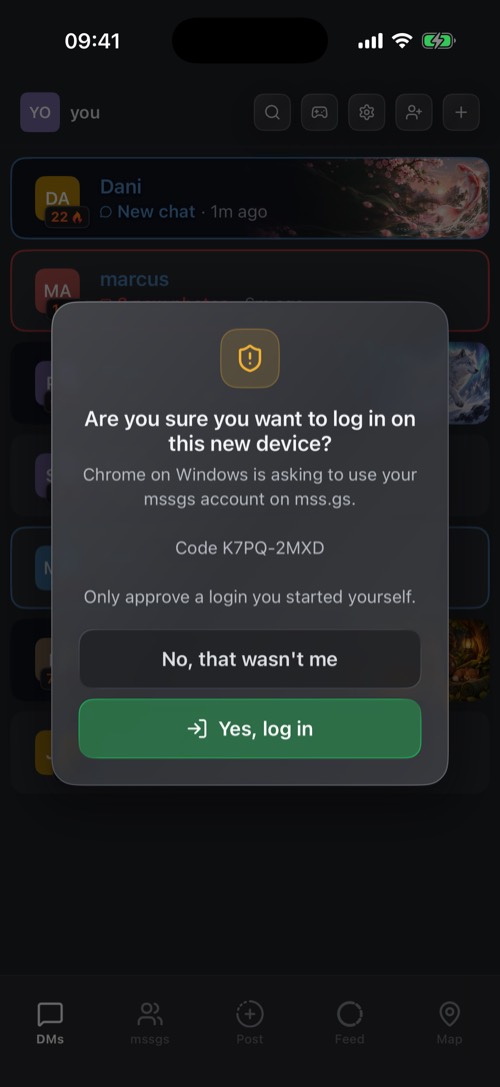
Your phone asks Are you sure you want to log in on this new device?, with the browser and a code. Check the code matches the one on your computer and tap Yes, log in.
Other ways
- With the desktop app: if mssgs is installed on the same computer, the website can hand the sign-in to the app to approve.
- With an email code: enter your email address and the code we send you.
Only approve a sign-in you started yourself. If your phone asks and you did not just open a sign-in page, tap No, that wasn't me. That cancels the code, and nobody gets in.
Was this article helpful?
Didn’t find what you were looking for? We’re happy to help.
Ask your question