Roles & Permissions
User groups decide who may post, moderate and manage what. Give members roles and limit channels to them.
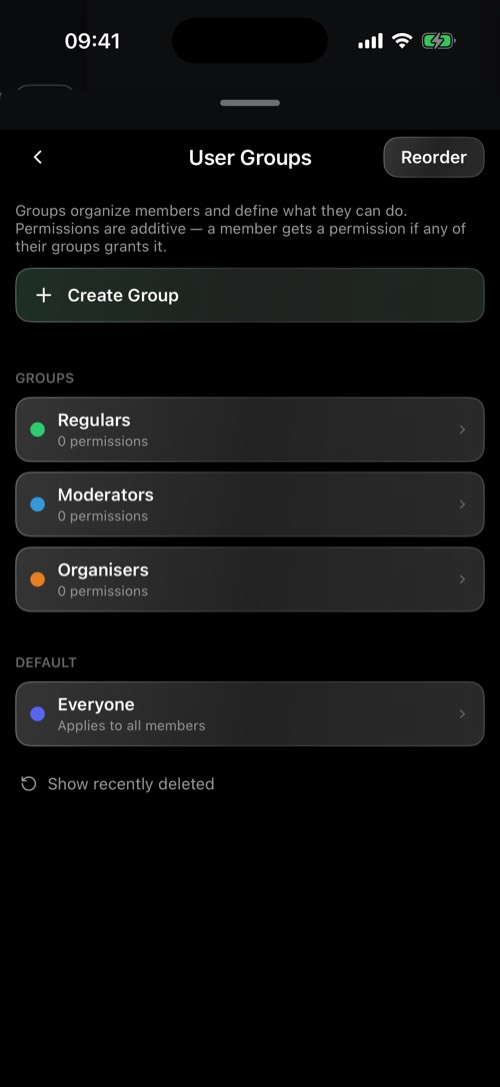
Roles are called user groups in mssgs. Each group has a name, a colour and a set of permissions, and a member gets every permission of every group they are in.
Create a role
1
Go to Server Settings → User Groups and tap Create Group.
2
Name it and pick a colour. Members in the group show their name in that colour.
3
Set each permission to Enabled, Default or Disabled.
The permissions
| Area | Permissions |
|---|---|
| Running the community | Manage Server, Manage User Groups, Manage Channels, Manage Emojis, Manage Triggers, Manage Invites, Manage Webhooks |
| Moderation | Manage Members, Kick/Ban Members, Delete Messages, Mute in Voice, Kick from Voice |
| Taking part | Send Messages, Attach to Messages, Post Voice Memos, Post GIFs, Post Files, Add Reactions, Post Events |
Give someone a role
Open the members list, hold the member and choose Roles. Tick the groups they belong in.
To keep a channel for certain roles only, hold the channel and choose Assign roles to channels. Members can ask for access themselves with Request access or a role, which posts a request for the owner.
Was this article helpful?
Didn’t find what you were looking for? We’re happy to help.
Ask your question