Channels & Categories
Seven kinds of channel, how to create and arrange them, and the options behind each one.
Kinds of channel
- Text channel: the everyday channel for messages, photos, GIFs and replies.
- Voice channel: drop in and talk. Everyone sees who is in.
- Game channel: a voice channel with a game table as the main view. Join the voice to play; everyone else in the channel watches.
- Photo channel: a gallery grid instead of a conversation, with replies underneath.
- Suggestions channel: members post ideas and vote them up or down.
- Watch party channel: watch a video together, in sync, with the chat beside it.
- Announcement channel: only chosen roles can post, and every message is an announcement card.
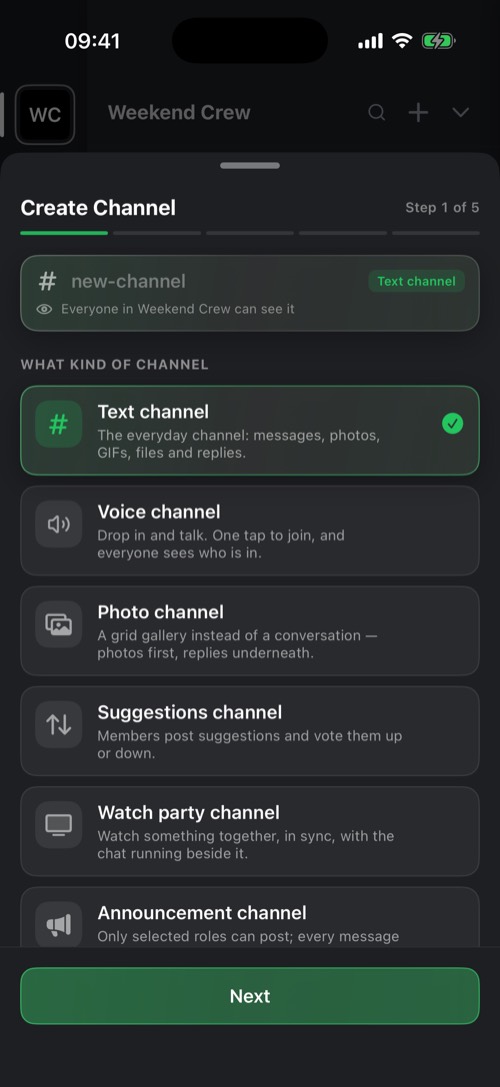
Create a channel or category
1
In the channel list, tap + at the top and choose Create Channel or Create Category.
2
Pick the kind of channel and give it a name.
3
Optionally limit it to certain roles, or let messages delete themselves after a set time.
You need a role that allows managing channels. Edit Channels in the same menu lets you rearrange them.
Hold a channel
- Mark as read and Notifications: Off, When in server, or Everywhere.
- Mute channel for 15 minutes, 1 hour, 8 hours, 24 hours or until you unmute.
- Lock with code: a 4-digit code on this channel, on this device.
- Manage Channel, Assign roles to channels and Delete Channel, for those allowed.
Inside a channel
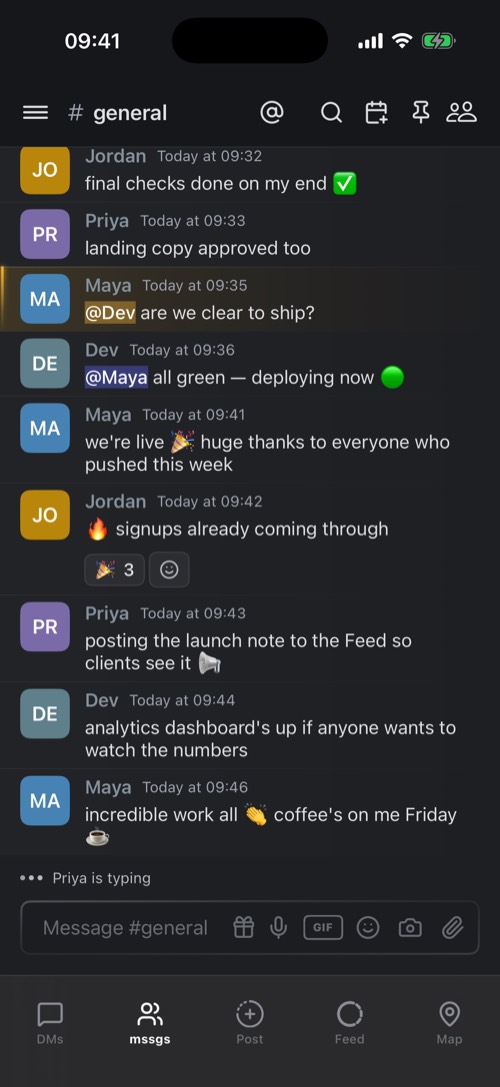
The buttons at the top of a channel are, from left to right:
- @: your mentions.
- Search in this channel, or across the whole community.
- New event, if your role may post events.
- Pinned Messages.
- Members: who is here, who is reading along live and when each person last read.
Was this article helpful?
Didn’t find what you were looking for? We’re happy to help.
Ask your question