Moderating a Community
Kick and ban members, remove messages, handle reports and look after your community settings.
Server Settings
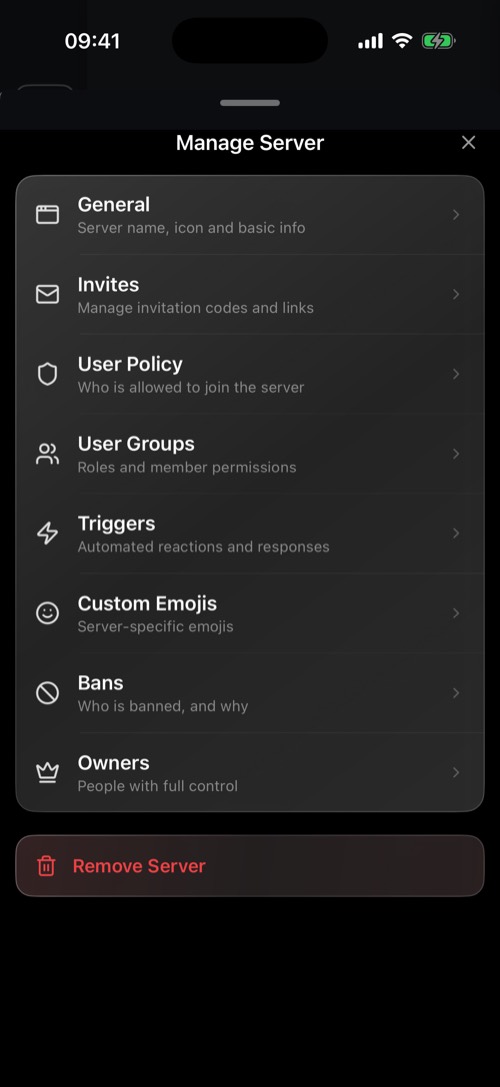
Hold the community's icon and choose Server Settings:
- General: the name (you can change it once a month), the icon, a join message and the channel new members land in.
- Invites and User Policy: see Inviting People.
- User Groups: see Roles & Permissions.
- Custom Emojis, Triggers, Bans and Owners.
Dealing with a member
Open the members list and hold the person:
- Kick removes them. They can come back with a new invite.
- Ban removes them for good, with an optional reason. Also ban their IP address makes a new account harder.
- Lift a ban later under Server Settings → Bans.
Members with Delete Messages can delete anyone's message from its options sheet.
Reports
When a member reports a message, it goes to the mssgs community moderators, volunteers who vote on each report, not to the community owner. mssgs staff step in when a report is urgent. Anyone can also report a whole community by holding its icon and choosing Report Community.
On the desktop app
A few admin tools are only in the desktop app: uploading custom emoji, creating triggers and webhooks, adding co-owners and the audit log of who changed what.
Was this article helpful?
Didn’t find what you were looking for? We’re happy to help.
Ask your question